




Guide e suggerimenti
The Ultimate Guide to Ergonomic Home Office Setup for Remote Workers
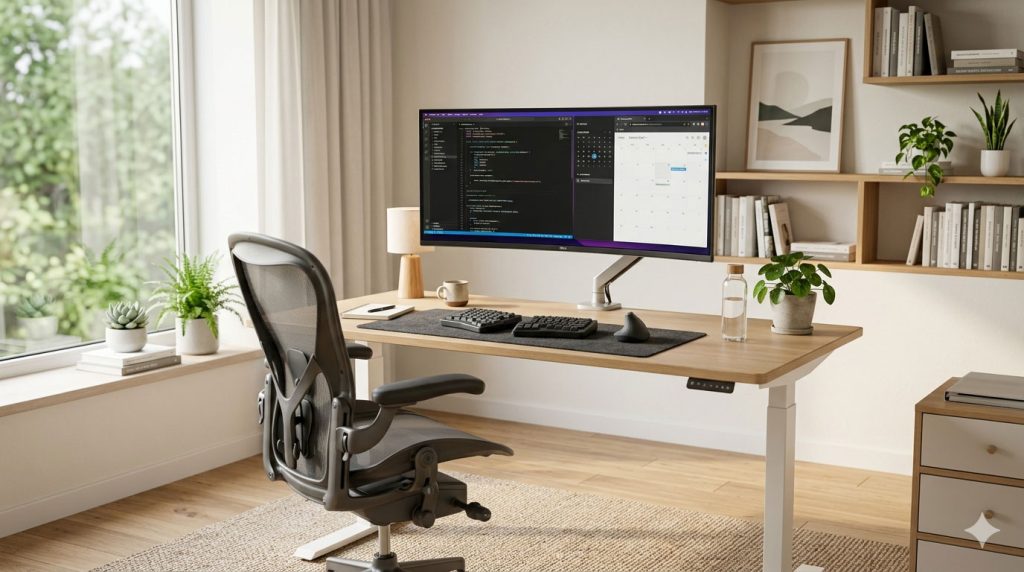
A Science-Based Approach to Preventing Pain and Maximizing Productivity
Executive Summary
The global shift to remote work has transformed millions of homes into workplaces, often without proper ergonomic considerations. According to the Bureau of Labor Statistics, musculoskeletal disorders account for 30% of all worker injury and illness cases. This comprehensive guide provides evidence-based strategies for creating an ergonomic home office that prevents pain, reduces fatigue, and enhances productivity.
Key Takeaways:
- Proper monitor height reduces neck strain by up to 32%
- Ergonomic chair investment pays for itself through reduced healthcare costs
- Standing desk intervals of 30-60 minutes optimize health benefits
- Keyboard and mouse positioning directly impact carpal tunnel risk
- Lighting quality affects both eye health and productivity
Table of Contents
- Understanding Workplace Ergonomics
- Essential Equipment Selection Guide
- Optimal Desk Setup Configuration
- Chair Selection and Adjustment
- Monitor Positioning and Eye Care
- Keyboard and Mouse Ergonomics
- Standing Desk Integration
- Lighting and Environmental Factors
- Movement and Break Strategies
- Budget-Friendly Ergonomic Solutions
- Frequently Asked Questions
- Quick Reference Checklist
Understanding Workplace Ergonomics
What Is Ergonomics?
Ergonomics is the scientific discipline concerned with understanding interactions between humans and other elements of a system. In the workplace context, it focuses on designing workspaces and tools that fit the human body, rather than forcing the body to adapt to poorly designed environments.
Why Ergonomics Matters for Remote Workers
Remote workers face unique challenges that office workers often do not:
Common Remote Work Pain Points:
- Using kitchen tables or couches as workstations
- Inadequate chair support from dining or living room furniture
- Improper monitor height leading to neck strain
- Lack of adjustable equipment
- Extended work hours without breaks
- Poor lighting conditions
- Distractions leading to prolonged static postures
Health Impact Statistics:
- 45% of remote workers report new or worsened back pain
- 38% experience increased neck and shoulder discomfort
- 27% report eye strain from improper screen positioning
- Workers in poor ergonomic conditions show 20% lower productivity
The Cost-Benefit Analysis
Investment vs. Return:
| Investment Area | Average Cost | Potential Savings |
|---|---|---|
| Ergonomic Chair | $200-600 | $500-2000/year in healthcare |
| Standing Desk | $150-500 | Reduced back pain treatment |
| Monitor Arm | $50-150 | Prevented neck issues |
| Keyboard/Mouse | $50-150 | Avoided RSI treatment |
| Lighting | $30-100 | Reduced eye strain costs |
Essential Equipment Selection Guide
Priority 1: The Chair
An ergonomic chair is the foundation of any home office setup. The average office worker sits for 6-8 hours daily, making chair selection critical.
Essential Chair Features:
- Adjustable Seat Height
- Range: 15-22 inches for most users
- Feet should rest flat on the floor
- Thighs parallel to the ground
- Supporto lombare
- Adjustable height and depth
- Supports natural spine curvature
- Prevents lower back strain
- Seat Depth Adjustment
- 2-4 fingers width between seat edge and knee
- Prevents pressure on thighs
- Accommodates different leg lengths
- Armrests
- Adjustable height and width
- Padded for comfort
- Allow shoulders to remain relaxed
- Backrest Recline
- 90-135 degree range
- Lockable positions
- Reduces disc pressure
Chair Selection by Budget:
| Budget | Recommended Features | Example Models |
|---|---|---|
| Under $150 | Basic adjustability, mesh back | IKEA Markus, Staples Hyken |
| $150-400 | Full adjustability, lumbar support | Autonomous ErgoChair, Branch Verve |
| $400-800 | Premium materials, extensive adjustability | Steelcase Leap, Herman Miller Aeron |
| $800+ | Lifetime warranty, advanced ergonomics | Herman Miller Embody, Steelcase Gesture |
Priority 2: The Desk
Desk Height Considerations:
Standard desk height (28-30 inches) works for average-height individuals but may not suit everyone. Consider:
- Fixed Desk: Use keyboard tray or adjust chair height with footrest
- Adjustable Desk: Ideal for multiple users and sit-stand transitions
- Desk Converter: Budget option for existing desks
Desk Depth Requirements:
- Minimum 24 inches for single monitor
- 30+ inches for dual monitors or laptop + monitor
- Adequate space for keyboard and mouse at proper distance
Priority 3: Monitor and Display
Monitor Selection Criteria:
- Screen Size
- 24-27 inches optimal for most work
- 32+ inches for design or data work
- Consider viewing distance (arm’s length)
- Resolution
- 1080p minimum for 24-inch displays
- 1440p recommended for 27-inch displays
- 4K for detailed visual work
- Panel Type
- IPS: Best color accuracy and viewing angles
- VA: Good contrast, budget-friendly
- TN: Fast response, lower quality
- Adjustability
- Height adjustment essential
- Tilt for glare reduction
- Pivot for portrait orientation
Optimal Desk Setup Configuration
The Neutral Posture Framework
Achieving neutral posture minimizes stress on muscles, tendons, and bones. This is the gold standard for ergonomic positioning.
Head and Neck:
- Top of monitor at or slightly below eye level
- Head balanced over shoulders
- Neck in neutral position, not tilted forward or back
Shoulders and Arms:
- Shoulders relaxed, not raised or hunched
- Upper arms close to body
- Elbows at 90-110 degree angle
- Forearms parallel to floor
Wrists and Hands:
- Wrists in neutral position, not bent up or down
- Hands floating over keyboard
- Mouse at same level as keyboard
Back and Hips:
- Lower back supported by chair’s lumbar curve
- Hips pushed back in seat
- Slight recline (100-110 degrees) reduces disc pressure
Legs and Feet:
- Thighs parallel to floor
- Knees at 90-degree angle
- Feet flat on floor or footrest
The 90-90-90 Rule
A simple framework for proper positioning:
- First 90°: Elbow angle
- Second 90°: Hip angle
- Third 90°: Knee angle
While this is a starting point, research suggests a slight recline (100-110° at hips) reduces spinal disc pressure more effectively than an upright 90° position.
Distance Guidelines
| Body Part to Equipment | Recommended Distance |
|---|---|
| Eyes to Monitor | 20-26 inches (arm’s length) |
| Body to Keyboard | 4-6 inches from desk edge |
| Mouse to Keyboard | Adjacent, same level |
| Thighs to Desk Underside | 2-3 inches clearance |
Chair Selection and Adjustment
Step-by-Step Chair Adjustment
Step 1: Seat Height
- Stand in front of the chair
- Adjust seat pan to just below knee cap
- Sit and check: feet flat, thighs parallel to floor
- If feet don’t reach floor, add a footrest
Step 2: Seat Depth
- Sit with back against backrest
- Check gap between seat edge and knees
- Should fit 2-4 fingers (approximately 2-4 inches)
- Adjust depth if available, or use lumbar cushion
Step 3: Lumbar Support
- Position support at belt line level
- Adjust depth to fill natural spine curve
- Should feel support without pressure
- Reassess after 30 minutes of sitting
Step 4: Armrests
- Adjust height so shoulders remain relaxed
- Forearms should rest lightly, not bear weight
- Width should allow close keyboard access
- Consider removing armrests if they prevent proper positioning
Step 5: Backrest Tension
- Adjust recline tension for smooth movement
- Should support leaning back without effort
- Lock at preferred position (100-110° recommended)
Common Chair Mistakes to Avoid
- Sitting too high: Causes pressure on thighs, feet dangling
- Armrests too high: Raises shoulders, causes tension
- No lumbar support: Leads to slouching and back pain
- Seat too deep: Pressure behind knees, poor circulation
- Never adjusting: One setting doesn’t fit all day
Monitor Positioning and Eye Care
The 20-20-20 Rule
Every 20 minutes, look at something 20 feet away for 20 seconds. This simple practice reduces eye strain significantly.
Monitor Height and Distance
Height Adjustment:
- Top of screen at or slightly below eye level
- For bifocal wearers: lower to avoid neck tilting
- Center of screen 15-20 degrees below horizontal eye level
Distance Calculation:
- Minimum: 20 inches (50 cm)
- Optimal: Arm’s length (20-26 inches)
- Maximum: 30 inches for larger screens
Monitor Tilt:
- Slight backward tilt (10-20 degrees)
- Reduces glare
- More comfortable for reading
Dual Monitor Setup
Side-by-Side Configuration:
- Primary monitor directly in front
- Secondary monitor at 30-degree angle
- Both at same height
- Gap between monitors minimized
Primary vs. Secondary Positioning:
- Place most-used monitor centered
- Angle secondary monitor toward dominant eye
- Consider monitor arm for flexible positioning
Reducing Eye Strain
Environmental Factors:
- Ambient Lighting
- Match screen brightness to room lighting
- Avoid bright windows in front or behind
- Use task lighting for document reading
- Screen Settings
- Enable blue light filter (night mode) in evening
- Adjust brightness to match surroundings
- Use high contrast for text work
- Increase font size to reduce squinting
- Glare Reduction
- Position monitor perpendicular to windows
- Use matte screen protector if needed
- Install blinds or curtains for light control
Keyboard and Mouse Ergonomics
Keyboard Positioning
Optimal Placement:
- Center keyboard with body (align B key with navel)
- 4-6 inches from desk edge
- Negative tilt (front higher than back) optional
- Keep wrists floating, not resting on sharp edges
Keyboard Types for Ergonomics:
| Type | Benefits | Best For |
|---|---|---|
| Standard | Familiar, affordable | Occasional typing |
| Split | Reduces ulnar deviation | Heavy typists |
| Compact | Mouse closer to body | Limited desk space |
| Mechanical | Tactile feedback, durability | Programmers, writers |
| Ergonomic Curved | Natural hand position | Wrist pain prevention |
Mouse Ergonomics
Positioning Guidelines:
- Same level as keyboard
- Close to body (within easy reach)
- Allow forearm to rest on desk surface
- Move from shoulder, not wrist
Mouse Types:
- Standard Mouse
- Familiar, affordable
- Choose size that fits hand
- Consider wireless for flexibility
- Vertical Mouse
- Handshake position reduces pronation
- Decreases carpal tunnel pressure
- Learning curve of 1-2 weeks
- Trackball Mouse
- Stationary, finger-controlled
- Reduces wrist movement
- Good for limited desk space
- Touchpad
- Built into laptops
- External versions available
- Gesture-based navigation
Keyboard Shortcuts
Reduce mouse usage through keyboard shortcuts:
Universal Shortcuts:
- Ctrl+C/V/X: Copy, Paste, Cut
- Ctrl+Z/Y: Undo, Redo
- Ctrl+A: Select All
- Alt+Tab: Switch applications
- Ctrl+F: Find
Browser Shortcuts:
- Ctrl+T: New tab
- Ctrl+W: Close tab
- Ctrl+L: Address bar focus
- Space: Page down
Standing Desk Integration
Benefits of Sit-Stand Work
Research from the Mayo Clinic and other institutions demonstrates significant benefits from alternating between sitting and standing:
Health Benefits:
- Reduced risk of cardiovascular disease
- Lower blood sugar levels after meals
- Decreased lower back pain
- Improved posture awareness
- Increased calorie expenditure (additional 50-100 calories/hour)
Productivity Benefits:
- Enhanced focus and alertness
- Reduced afternoon fatigue
- Improved mood and energy
- Better collaboration in standing meetings
Standing Desk Options
Full Standing Desk:
- Complete desk surface adjusts
- Best for dedicated workspaces
- Range: $300-1000+
Desk Converter:
- Sits on existing desk
- Raises monitor and keyboard
- Range: $100-400
DIY Solutions:
- Sturdy boxes or shelves
- Adjustable furniture risers
- Temporary standing setup
The Sit-Stand Ratio
Recommended Pattern:
- Stand for 15-30 minutes every hour
- Start with shorter standing periods
- Gradually increase standing tolerance
- Listen to your body
Standing Desk Mistakes
- Standing too long: Causes leg and foot pain
- Poor footwear: Barefoot or unsupportive shoes
- No anti-fatigue mat: Increases foot fatigue
- Monitor too low: Same rules apply when standing
- Locking knees: Keep slight bend, shift weight
Lighting and Environmental Factors
Optimal Lighting Setup
Layered Lighting Approach:
- Ambient Lighting (General)
- Overhead lights or floor lamps
- Provides overall illumination
- Avoid harsh fluorescent directly overhead
- Task Lighting (Focused)
- Desk lamp for document work
- Position opposite dominant hand
- Adjustable brightness preferred
- Accent Lighting (Optional)
- Reduces contrast between screen and surroundings
- Bias lighting behind monitor
- Creates comfortable viewing environment
Natural Light Management
Benefits of Natural Light:
- Regulates circadian rhythm
- Improves mood and alertness
- Reduces eye strain
- Enhances productivity
Positioning Guidelines:
- Desk perpendicular to windows (side lighting)
- Avoid window directly behind or in front
- Use blinds or curtains for glare control
- Consider screen orientation throughout day
Temperature and Air Quality
Optimal Temperature Range:
- 68-72°F (20-22°C) for most workers
- Personal preferences vary
- Warmer temperatures may decrease alertness
Air Quality Considerations:
- Ventilation prevents CO2 buildup
- Plants can improve air quality
- Consider air purifier for allergies
- Open windows when possible
Movement and Break Strategies
The Importance of Movement
Sedentary behavior is independently associated with increased mortality risk, regardless of exercise habits. Regular movement breaks are essential.
Recommended Break Schedule
Micro-breaks (Every 20-30 minutes):
- 30-60 seconds of movement
- Eye exercises (20-20-20 rule)
- Stretch at desk
Short breaks (Every 60-90 minutes):
- 5-10 minutes away from desk
- Walk, stretch, or do light exercise
- Hydrate and use restroom
Longer breaks (Every 2-3 hours):
- 15-30 minutes
- Meal break or significant movement
- Change environment
Desk Stretches
Neck Stretches:
- Ear to shoulder (hold 15 seconds each side)
- Chin tucks (10 repetitions)
- Neck rotations (slow, controlled)
Shoulder and Upper Back:
- Shoulder rolls (forward and backward)
- Cross-body arm stretch (15 seconds each)
- Wall angels (10 repetitions)
Lower Back:
- Seated spinal twist (each side)
- Hip flexor stretch (standing)
- Cat-cow at desk edge
Wrists and Hands:
- Wrist circles (each direction)
- Prayer stretch (palms together)
- Finger spreads and closes
Budget-Friendly Ergonomic Solutions
Under $50 Solutions
| Item | Approximate Cost | Benefit |
|---|---|---|
| Laptop riser | $15-30 | Proper screen height |
| External keyboard | $15-30 | Better typing position |
| Lumbar cushion | $15-25 | Back support |
| Footrest (DIY or purchased) | $10-25 | Leg circulation |
| Monitor riser/stand | $15-35 | Eye-level display |
$50-150 Solutions
| Item | Approximate Cost | Benefit |
|---|---|---|
| Ergonomic keyboard | $50-100 | Wrist alignment |
| Vertical mouse | $40-80 | Reduced pronation |
| Monitor arm | $40-100 | Flexible positioning |
| Anti-fatigue mat | $30-60 | Standing comfort |
| Desk converter (basic) | $80-150 | Sit-stand capability |
DIY Alternatives
Monitor Riser:
- Stack sturdy books
- Use wooden blocks
- Repurpose shelf units
Footrest:
- Sturdy box or crate
- Old phone books
- Yoga block
Laptop Stand:
- Binder or book
- Cooling pad with stand
- DIY wooden stand
Frequently Asked Questions
How long does it take to adjust to an ergonomic setup?
Most people adapt within 1-2 weeks. Initial discomfort is normal as your body adjusts to proper positioning. If pain persists beyond 2 weeks, reassess your setup or consult a professional.
Is an expensive ergonomic chair worth it?
For full-time remote workers spending 40+ hours weekly at a desk, a quality ergonomic chair is a worthwhile investment. Healthcare costs from back pain, neck strain, and related issues often exceed chair costs. Budget $200-500 for a good entry-level ergonomic chair.
Can I use my couch or bed for work?
Occasional use is acceptable, but regular couch or bed work leads to poor posture and pain. If necessary, use a lap desk, maintain neutral posture as much as possible, and limit duration to under 2 hours.
How do I know if my monitor is at the right height?
The top of your screen should be at or slightly below eye level. When sitting comfortably with your back against the chair, you should be able to read the screen without tilting your head up or down significantly.
What’s the best position for keyboard and mouse?
Both should be at the same level, allowing your elbows to stay close to your body at 90-110 degrees. Wrists should remain neutral (not bent), and you should be able to reach both without stretching.
How often should I take breaks?
Follow the 20-20-20 rule for eyes (every 20 minutes). For movement, aim to stand or walk every 30-60 minutes. Even 1-2 minutes of movement provides benefits.
Are standing desks actually beneficial?
Research supports standing desks for reducing back pain and increasing alertness. However, standing all day isn’t the solution—alternating between sitting and standing provides optimal benefits.
What should I do if I already have back or neck pain?
- Assess your current setup against ergonomic guidelines
- Make immediate adjustments to problematic areas
- Incorporate regular stretching and movement
- Consider consulting a physical therapist or ergonomist
- Don’t ignore persistent pain—seek medical attention
Quick Reference Checklist
Daily Setup Verification
- Chair height allows feet flat on floor
- Lumbar support positioned at belt line
- Monitor top at or below eye level
- Monitor at arm’s length distance
- Keyboard centered with body
- Mouse adjacent to keyboard, same level
- Elbows at 90-110 degrees
- Wrists in neutral position
- Lighting adequate without glare
- Take first break within 60 minutes
Weekly Assessment
- Review any new pain or discomfort
- Adjust setup based on feedback
- Clean equipment (keyboard, mouse, screen)
- Check cable management
- Evaluate productivity and comfort
Monthly Evaluation
- Comprehensive setup review
- Equipment maintenance check
- Consider upgrades if needed
- Assess long-term comfort and health
- Update breaks and movement routine
Conclusione
Creating an ergonomic home office is an investment in your health, comfort, and productivity. Start with the fundamentals: proper chair, appropriate desk height, and correct monitor positioning. Add keyboard and mouse ergonomics, implement regular movement breaks, and optimize your environment.
Remember that ergonomics is not a one-time setup but an ongoing process. Listen to your body, make adjustments as needed, and prioritize movement throughout your workday. The time and resources invested in proper ergonomics will pay dividends in reduced pain, increased productivity, and better overall health.
Start Today:
- Assess your current setup using this guide
- Identify the top 3 areas needing improvement
- Make immediate changes where possible
- Plan investments for larger improvements
- Establish movement break habits
- Reassess weekly and adjust as needed
Disclaimer: This guide provides general ergonomic information. For specific medical concerns or persistent pain, consult healthcare professionals including physicians, physical therapists, or certified ergonomists.
Last Updated: April 2026